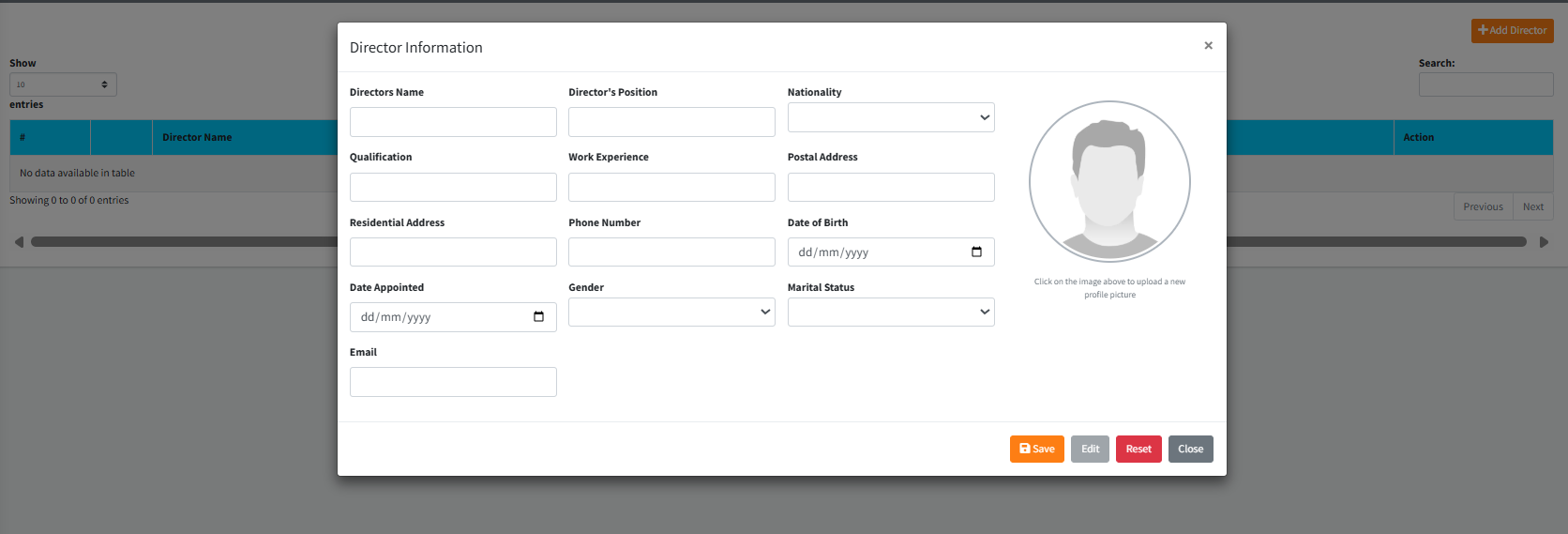
The Board Directors module is a core administrative setup tool within Sikasoft designed to maintain the official registry of the institution’s governing body. It provides a structured, centralized table to monitor active directors, complete with a comprehensive profile modal that captures everything from personal demographics and contact information to professional qualifications and official appointment dates.
PURPOSE
- Maintain an accurate, up-to-date digital registry of all appointed Board Members.
- Provide a quick-reference dashboard for essential director metrics (Name, Position, Contact info, Tenure).
- Standardize the capture of personal, residential, and professional demographic data for regulatory compliance.
- Digitally store visual identification (profile pictures) alongside official records.
STEP-BY-STEP GUIDE
Step 1 — Accessing the Director Registry
- Navigate to the Admin Setup module via the main navigation sidebar, and select the Board Directors page.
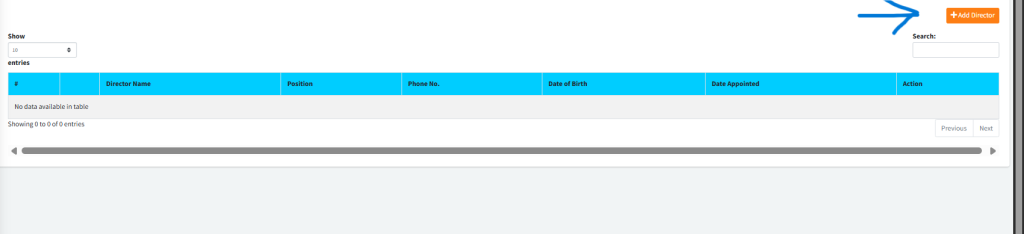
- The main screen will display a tabular dashboard listing all currently registered directors, showing their Name, Position, Phone number, Date of Birth, and Date Appointed.
- To modify an existing director’s profile, click the appropriate action button in the right-most column of their row.

Step 2 — Adding a New Director
- Click the orange Add Director button located at the top right of the dashboard.
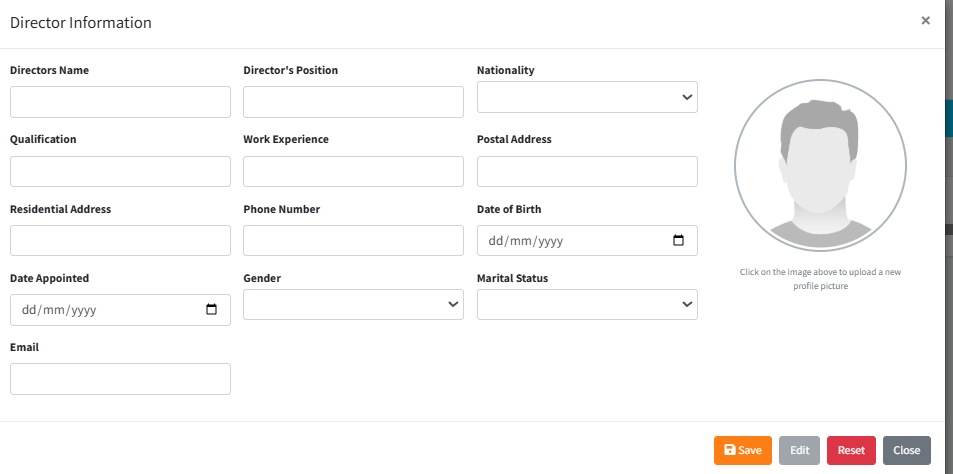
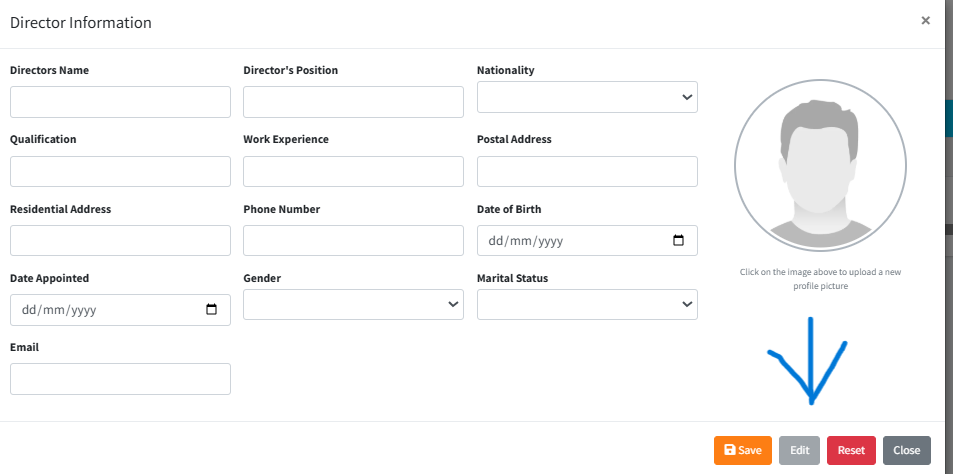
- The Director Information modal will appear on the screen.
Step 3 — Completing the Director Profile
- Official Information: Enter the director’s full
Directors Name, their specificDirector's Position(e.g., Chairman, Secretary), and select theirNationalityfrom the dropdown. - Professional Background: Record their formal
Qualificationand a brief summary of theirWork Experience. - Contact Details: Fill out the
Postal Address,Residential Address,Phone Number, andEmail. - Demographics & Appointment: Use the date pickers for
Date of BirthandDate Appointed. Select theirGender(Male, Female, Other) andMarital Statusfrom the respective dropdown menus.
Step 4 — Uploading a Profile Picture
- Direct your attention to the right-most panel inside the modal containing the profile picture placeholder.
- Click directly on the image placeholder.
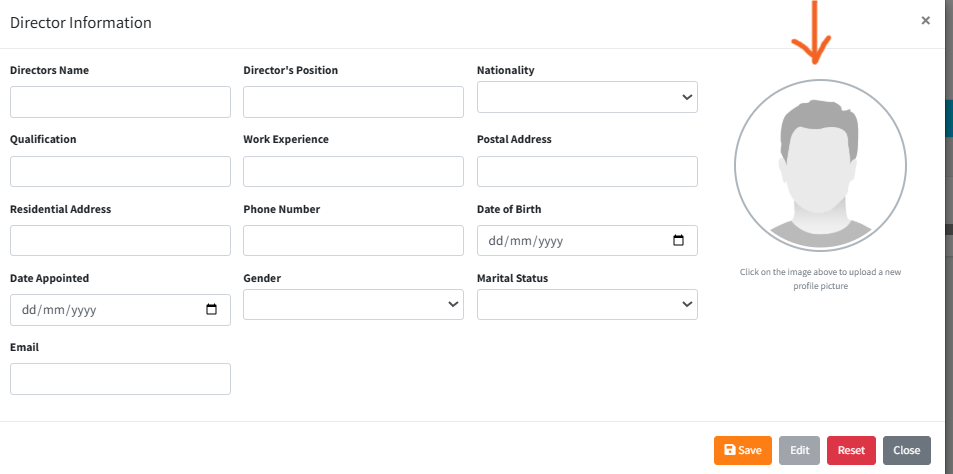
- Select the appropriate digital photo of the director from your internal storage. (Note: For the best results, use a passport-style portrait with a clear background).
Step 5 — Saving and Managing Records
- Once all mandatory fields and the profile picture have been provided, click the blue Save button in the modal footer to register the director.
- If you are updating an existing file, the fields may be locked until you click the grey Edit button. Save your changes when finished.
- Use the red Reset button to wipe the current form state if you’ve made a data-entry error and need to restart.
KEY NOTES
- Role Visibility: The Admin Setup module, particularly the Board Directors registry, should be restricted through user permissions to HR and Top-Level Administrators to prevent unauthorized profile edits.
- Picture Formatting: When uploading profile pictures, standard web formats (JPG, PNG) are recommended. The system automatically sizes the picture to fit the profile frame.