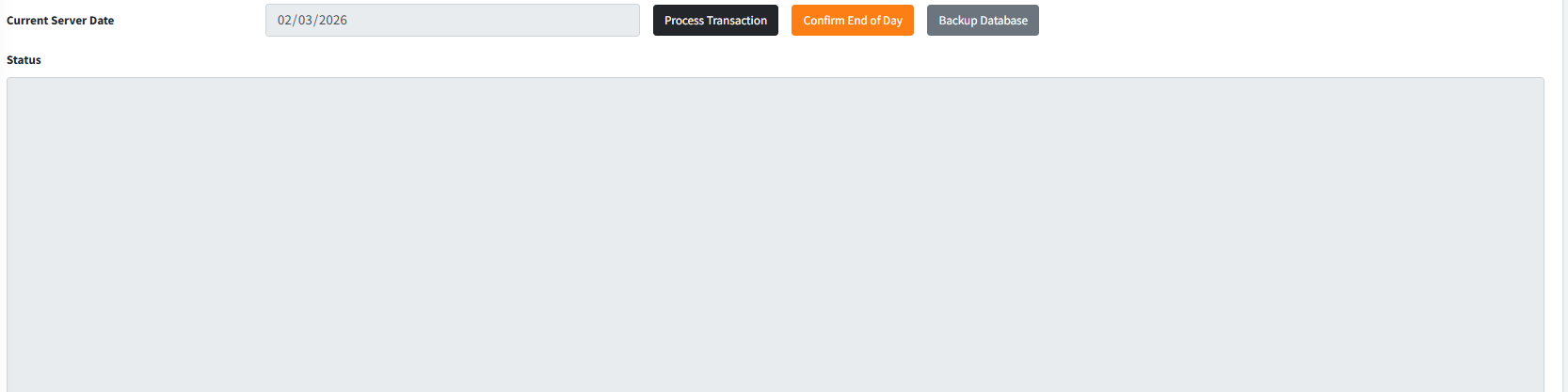
The End of Day (EOD) module is a critical, automated routine that marks the closure of daily business operations in Sikasoft. This module meticulously validates that the institution’s accounting is balanced, ensuring no unauthorized entries are pending, no tellers hold end-of-day balances, and the General Ledger is perfectly reconciled. Once all safety checks are passed, the routine posts automated financial transactions (such as daily accrued interest and automated deductions) and officially increments the system’s operational date.
PURPOSE
- Enforce strict daily accounting hygiene by preventing day closure if discrepancies (EOD problems) exist.
- Automate the posting of daily interest, standing orders, and loan deductions without manual intervention.
- Audit all system accounts, ensuring Tellers and Mobilizers have transferred their physical and digital funds to the main Vault.
- Provide a clear, running console log of the system’s status and the specific database procedures being executed.
- Facilitate daily database backups to ensure absolute data security.
STEP-BY-STEP GUIDE
Step 1 — Accessing the Module
- Navigate to the Admin Setup module via the main application sidebar and select End of Day.
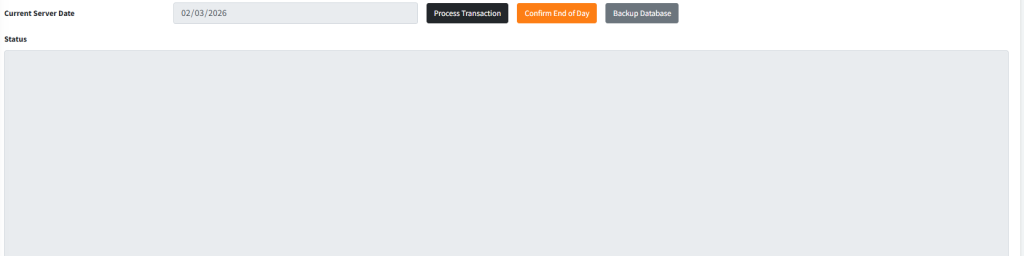
- The interface will display the Current Server Date (which cannot be manually edited here) alongside a large, central Status console window.
Step 2 — Initiating the Daily Process
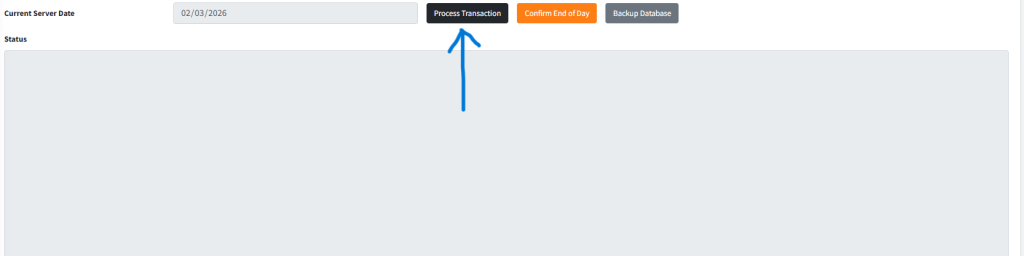
- Click the dark grey Process Transaction button at the top of the interface.
- System Action: The system will immediately begin running a sequence of validation checks. You will see real-time updates printing into the Status text area.
Step 3 — Reviewing Validation Checks The system will run through several rigid checks. If any of these fail, the EOD process will Abort:
- Control Accounts: Verifies that critical master accounts (like Withholding Tax) exist.
- Calendar Setup: Ensures the system knows when the end of the month occurs.
- Unauthorised Entries: If any pending transactions exist, a summary table will appear at the bottom of the screen. You must navigate to the Authorization module, approve or reject them, and then restart the EOD process.
- GL Differences (EOD Problems): If the ledger is out of balance, a modal will appear detailing the debit/credit difference. You must resolve these before proceeding.
- Teller & Mobilizer Funds: If tellers have not vaulted their cash, a table will appear listing the specific accounts holding balances.
Step 4 — Automated Processing If all validation checks pass (indicated by green checkmarks in the console), the system will automatically process the day’s financial scripts, including:
- Posting daily loan interest.
- Executing active standing orders.
- Calculating holding taxes and fixed deposit accruals.
- Triggering scheduled automated SMS reminders.
Step 5 — Confirming the End of Day
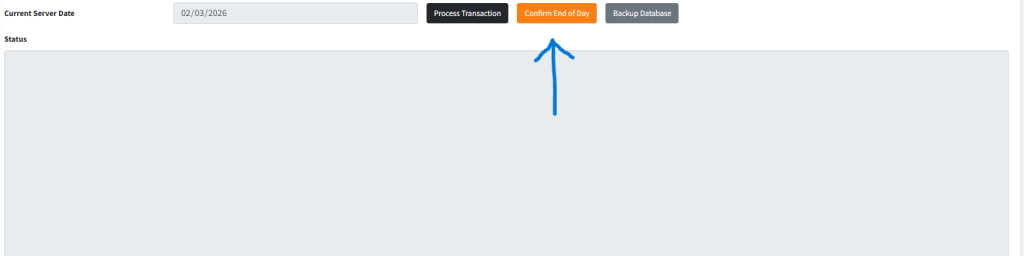
- Once the console reads
✓ PROCESS COMPLETED SUCCESSFULLY, the orange Confirm End of Day button will become active. - Click Confirm End of Day.
- A confirmation prompt will appear. Confirm the action to permanently close the operational day. Note: Logging out and logging back in will reflect the new operational server date.
Step 6 — Backing Up the Database
- As a final best practice, click the Backup Database button.
- The system will securely compile the day’s records and generate a backup file on the server.
KEY NOTES
- End of Month Exception: If the current date matches the system’s calendar for the end of the month, the End of Day process will be blocked. You must use the designated End of Month module instead.
- Strict Sequencing: You cannot click Confirm End of Day until Process Transaction has been executed and passed 100% of its internal checks.
- Error Tables: If the process is halted due to user errors (e.g., Unauthorised Entries), the tables displaying these errors will remain visible on the screen to help you troubleshoot.