
The Annual Budget module provides the institution with the tools necessary to project, allocate, and monitor financial expectations across all operating General Ledger (GL) accounts over a defined financial year. It features an automated multi-month distribution calculator and robust variance balancing to ensure annual estimates strictly match the sum of monthly allocations.
PURPOSE
- To establish strict financial tracking and expenditure/revenue targets for a given year.
- To rapidly divide total annual budget estimates across 12 calendar months automatically.
- To detect manual input errors by strictly evaluating the total sum of individualized monthly budgets against the declared annual master budget.
- To generate executive printable reports outlining complete financial year allocations.
STEP-BY-STEP GUIDE
1. Viewing Annual Budgets
- Navigate to the Admin Setup module and select Annual budget from the main side menu.
- In the top filter area, select the target Financial Year from the dropdown menu.
- The system will automatically retrieve and display the
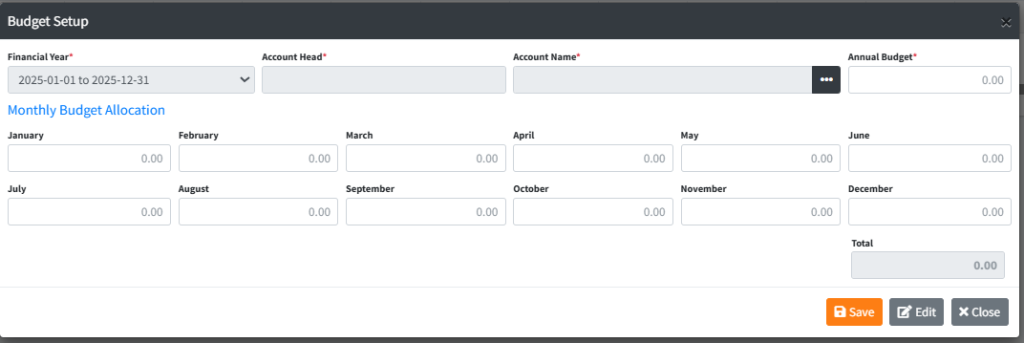
Budget Setupdata table, detailing the allocations for every GL account configured for that year, grouped dynamically month-by-month.

2. Creating or Updating a Budget Allocation
- Click the Add Budget (or use the primary form if inline) to open the
Budget Setupmodal. - Under Account Name, click the lookup button. This opens the
Find General Ledger Accountmodal. - Double-click or click SELECT on the desired GL account (e.g., Office Supplies Expense). The system will auto-populate the Account Head and Account Name fields.
- Enter the total projected amount into the Annual Budget field.
- Auto-Distribution: The system will automatically divide the annual amount by 12 and populate the months (January through December) with equal distributions.
- Manual Adjustment: You may manually overwrite individual months (e.g., heavier budget allocation in December for holidays). As you type, the bottom Total field will dynamically aggregate.
- Validation: Ensure the calculated Total at the bottom exactly matches your overarching Annual Budget at the top. The system will aggressively block saving if a variance exists.
- Click the Save button.
3. Recalling and Editing a Budget
- In your main dashboard table, locate the GL Account you wish to modify.
- Click the blue SELECT button on that row.
- The setup modal will open with the previously allocated data in a locked (disabled) state to prevent accidental changes.
- Click Edit to unlock the text fields.
- Make your budgetary adjustments, ensure your monthly totals balance, and click Save.

4. Generating the Budget Report
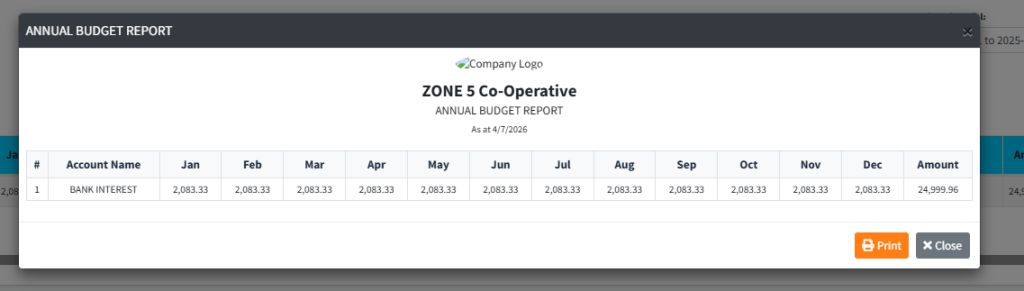
- To obtain a printable spreadsheet of the full year’s budget pipeline, click the Show Report button on the main dashboard.
- A formalized, printable invoice-style report modal will appear, pulling in the institutional logo, current timestamp, and the exact data grid.
- Click Print Report to send it directly to your connected printer or save it as a PDF.
KEY NOTES
- Balancing Act: The system will physically not permit you to save a budget if the sum of
January + February... + Decemberdoes not perfectly match theAnnual Budgetinput. - GL Account Restriction: You can only assign one budget row per GL Account per Financial Year. Attempting to add a second will likely prompt an edit/override of the first.
- Format: All monetary entries utilizing standard thousands separators (
,) are automatically handled and normalized by the backend.