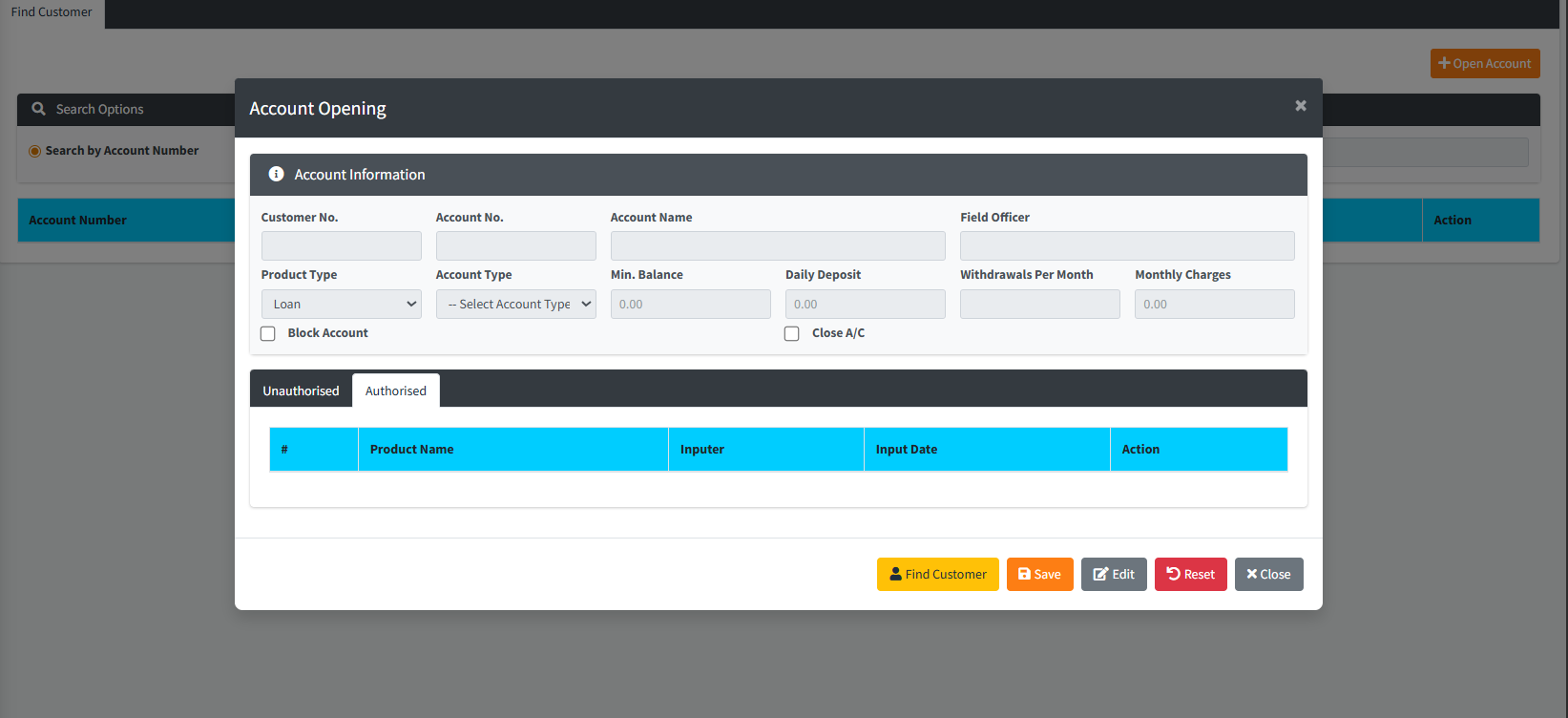
The Account Opening module is the secondary stage of the onboarding process. Once a customer has been registered in the system (KYC), this module is used to link them to specific institutional products—such as Savings, Susu, Loans, or Fixed Deposits. This action generates a unique, functional Account Number that governs how funds are deposited, withdrawn, or charged interest based on the product’s predefined financial rules.
PURPOSE
- Link registered “Person” or “Entity” records to specific banking products.
- Generate unique, branch-specific account numbers for transaction processing.
- Inherit financial parameters (Min Balance, Monthly Charges, Withdrawal Limits) from the Product Setup module.
- Enable specific administrative controls like “Account Blocking” or “Account Closure.”
- Provide a centralized view of all active and pending products held by a single customer.
STEP-BY-STEP GUIDE
Step 1 — Accessing the Module
- Navigate to Customer Records and select Account Opening via the sidebar.
- The main dashboard features a search interface for locating registered customers who need new products.

Step 2 — Finding the Target Customer
- Search Type: Choose between searching by Account Number (Global ID) or by Field Mobilizer.
- Enter the name or number in the search bar.
- Locate the customer in the results table and click the Action (Recall) button.

Step 3 — Configuring the New Account
- Click the Open Account button to launch the configuration modal.

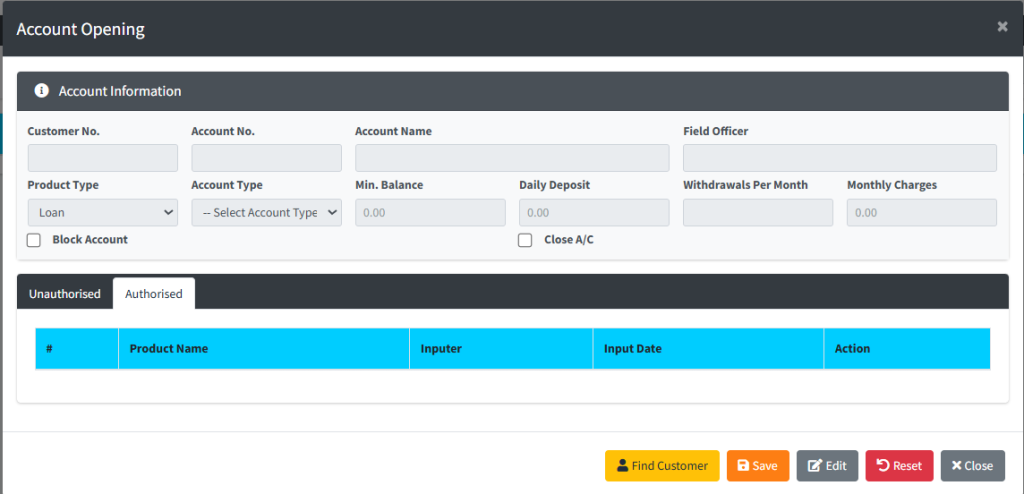
- Product Type: Select between Deposit (Savings/Current/Susu) or Loan.
- Account Type: Choose the specific product from the dropdown (e.g., “Regular Savings”).
- System Action: Once the Account Type is selected, the system will auto-populate the Min. Balance, Monthly Charges, and Withdrawals Per Month fields based on the institutional settings.
Step 4 — Setting Administrative Status
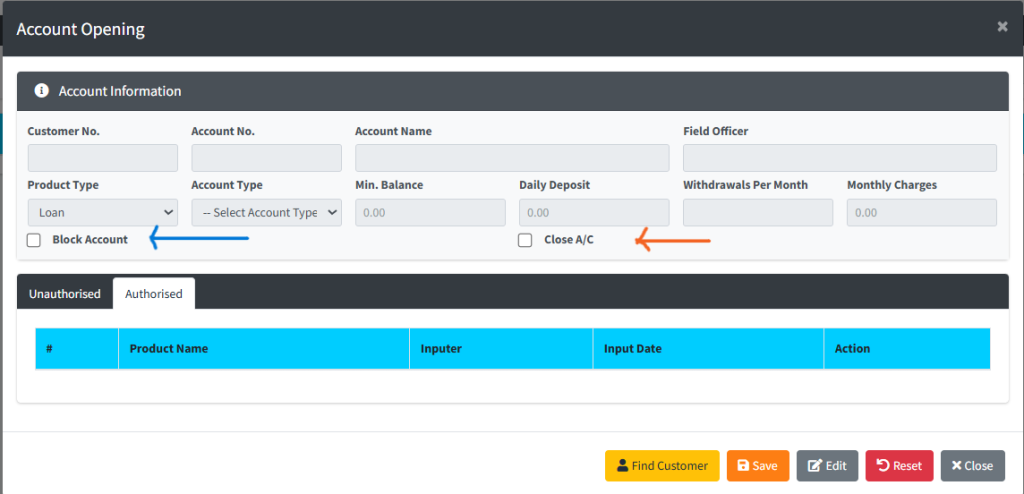
- Block Account: Check this box if the account should be prevented from making withdrawals immediately (e.g., pending further verification).
- Close A/C: Check this box for historical decommissioning of the specific product.
Step 5 — Saving & Authorization
- Click Save.
- System Action: The request is sent to the Unauthorised tab.
- A supervisor must review the request under the Account Opening Authorization page to activate the account number.
Step 6 — Reviewing Account History
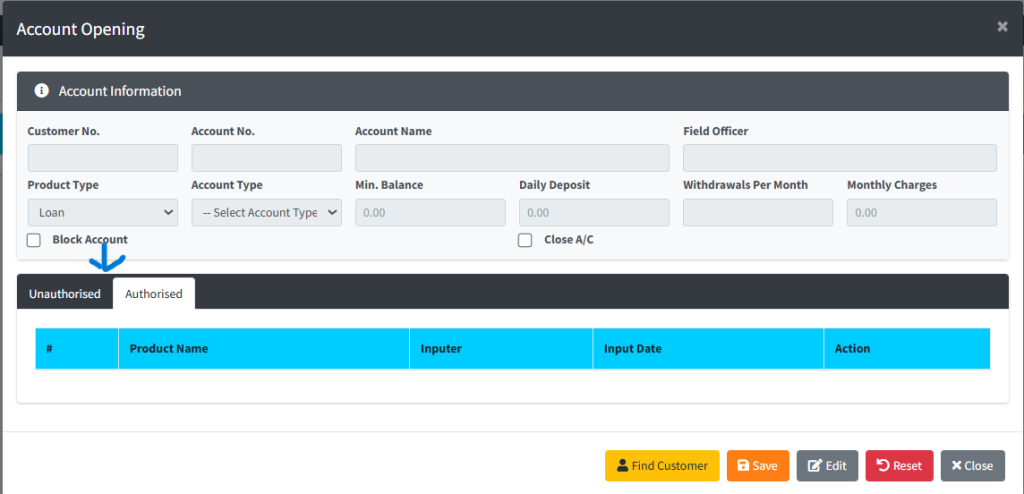
- At the bottom of the modal, use the Authorised and Unauthorised tabs to see a list of all current and pending accounts linked to this customer.
- This allows officers to verify if a customer is attempting to open duplicate accounts of the same type.
KEY NOTES
- Product Constraints: Most parameters (like interest rates or charges) are read-only and inherited from the Product Setup to ensure consistency across the institution.
- Account Number Logic: The generated account number typically includes the Branch ID and Product Code to facilitate easy identification during reports.
- Field Officer Link: The account is automatically linked to the “Field Officer” defined during the initial registration, ensuring commission accuracy for Susu/Mobilizer agents.