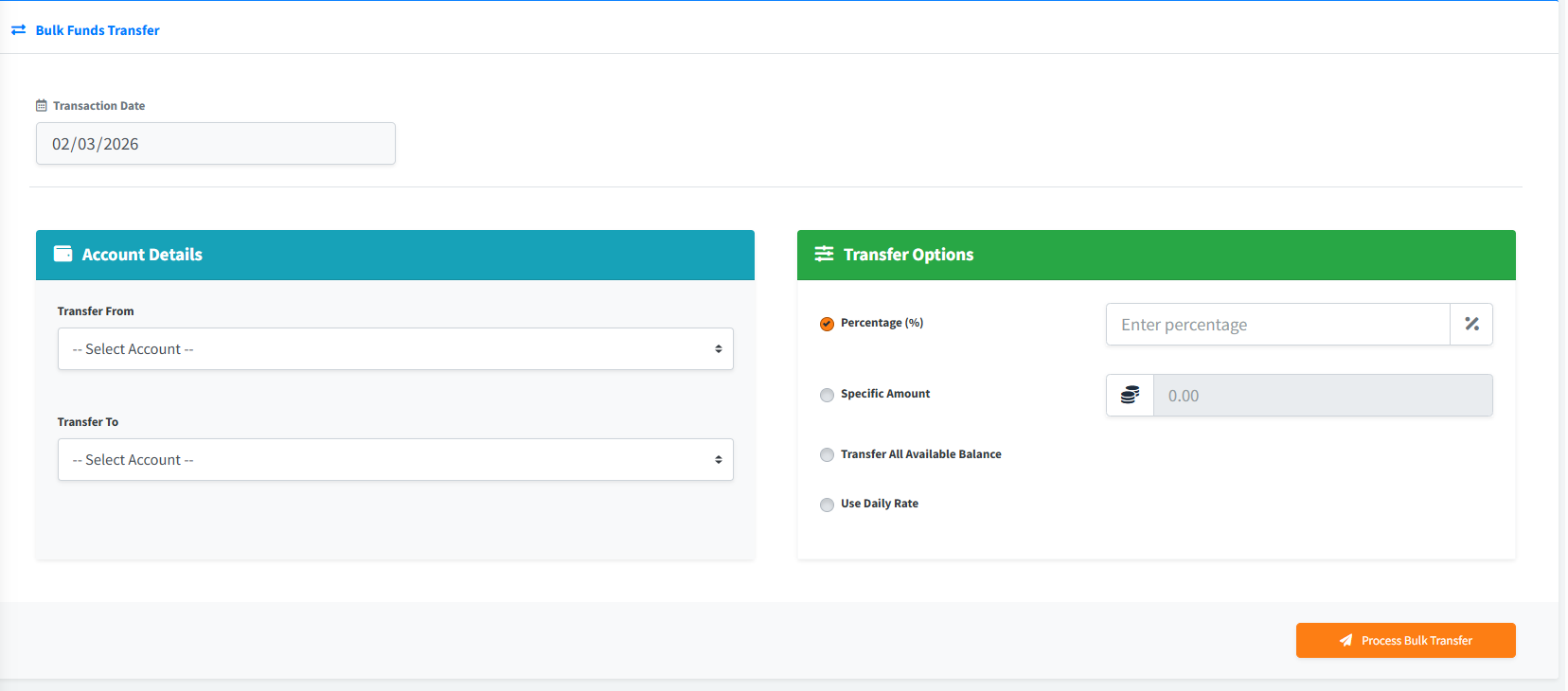
The Bulk Funds Transfer module is a powerful administrative tool that allows users to move funds simultaneously across all customer accounts from one product type to another. Instead of transferring money manually for every single customer, this utility automates the process across the entire institution based on flexible criteria such as specific percentages, exact amounts, total available balances, or dynamically via daily rates.
PURPOSE
- Radically reduce administrative workload by processing thousands of account transfers in a single click.
- Automate sweeping routines, such as moving a percentage of all savings deposits into investments or fixed deposits.
- Ensure accurate mathematical distributions across an entire product portfolio without manual data entry.
- Prevent errors through robust confirmation dialogues before any bulk operation begins.
STEP-BY-STEP GUIDE
Step 1 — Accessing the Module and Verifying Date
- Navigate to the core BackOffice Module and open the Bulk Funds Transfer page.
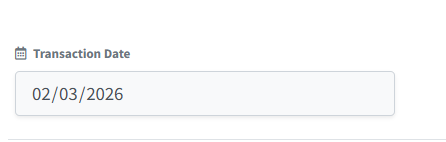
- Ensure the Transaction Date in the top left reflects the correct system date (this date is securely locked and auto-populated).
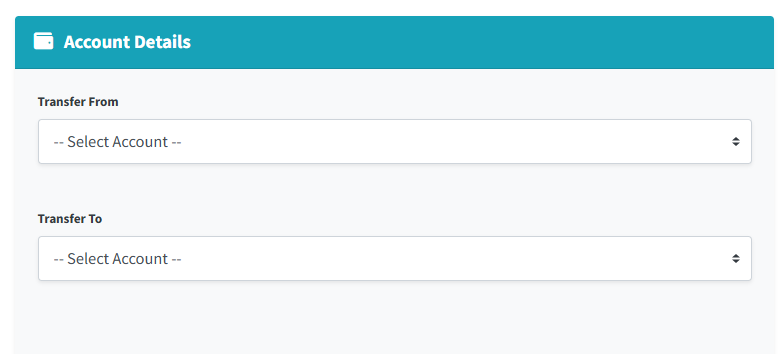
Step 2 — Selecting Product Accounts In the left column labeled “Account Details”:
- Transfer From: Use the dropdown menu to select the source deposit product. Funds will be deducted from all customer accounts associated with this product.
- Transfer To: Use the dropdown menu to select the destination deposit product. Funds will be deposited into the corresponding customer accounts for this product. (Note: You cannot select the identical product for both fields).
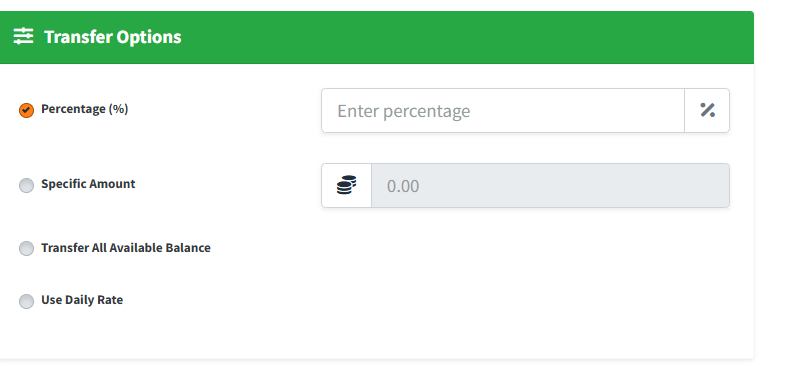
Step 3 — Defining Transfer Options In the right column labeled “Transfer Options”, select the criteria for how much money will be moved:
- Percentage (%): Select this radio button to transfer a specified percentage. The percentage input field will unlock. Type the number (e.g.,
10for 10%). - Specific Amount: Select this to transfer a flat fee. The amount input field will unlock. Enter the exact monetary value.
- Transfer All Available Balance: Select this to drain the source product accounts entirely, transferring 100% of available funds to the destination accounts.
- Use Daily Rate: Select this if your system relies on dynamically calculated daily interest or sweep rates configured in the backend.
Step 4 — Processing the Transfer
- Once your accounts and options are correctly configured, click the large blue Process Bulk Transfer button at the bottom right.
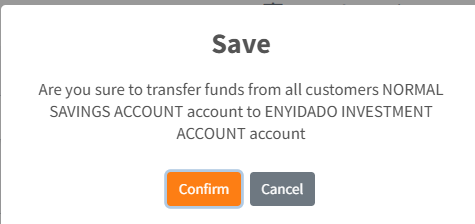
- A critical warning prompt will appear: “Are you sure to transfer funds from all customers [Source] account to [Destination] account”.
- Review this prompt extremely carefully. If accurate, click Confirm.
- The system will process the batch and display a Success notification.
KEY NOTES
- Global Impact: This module does not operate on a single customer’s account; it affects the entire user base holding the selected products. Access should be restricted to high-level supervisors or administrators.
- Empty Fields: If you select “Percentage (%)” or “Specific Amount” but leave the numerical field empty or at 0, the system will actively block the transfer from executing.
- Irreversible Operation: Performing a bulk transfer executes hundreds of ledger entries instantly. Reversing a mistaken bulk transaction requires significant technical intervention; always double-check the “Transfer From” and “Transfer To” fields.