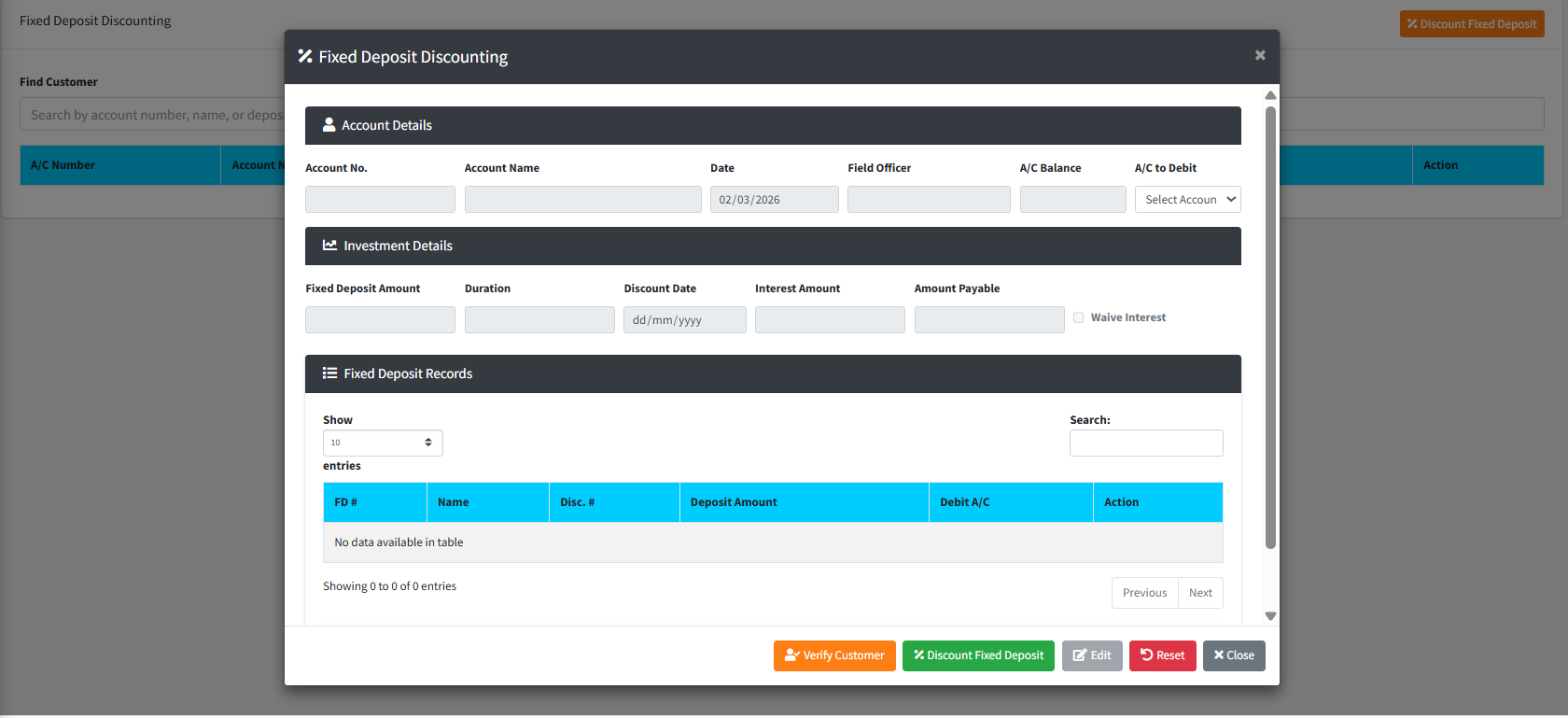
The Fixed Deposit Discounting page provides a secure interface to prematurely terminate or “discount” a customer’s active Fixed Deposit investment before its original maturity date. This module handles the automated calculation of the payout amount and records the transaction in an unauthorized state pending supervisor approval.
PURPOSE
- Allow staff to process early withdrawals (discounting) of Fixed Deposits for customers.
- Automatically fetch and display the investment details (Principal, Duration, and Interest).
- Ensure payouts are routed to a verified destination account (A/C to Debit).
- Verify customer identity using the integrated Profile Picture and Signature modal before processing the payout.
- Maintain an audit trail by sending the discounted request to the “Unauthorised” queue for managerial approval.
STEP-BY-STEP GUIDE
Step 1 — Start the Process
- Navigate to the Back Office module and access the Fixed Deposit Discounting page.
- The Discount Date is automatically set to the current system date.
Step 2 — Find the Active Fixed Deposit
- In the Find Customer search box on the main screen, type the customer’s account number, name, or deposit amount.

- The search results will display only active, non-discounted fixed deposits.
- Click the blue SELECT button next to the relevant Fixed Deposit No. This will automatically open the Discounting Modal.
Step 3 — Verify Customer Identity (Mandatory Anti-Fraud Check)
- In the popup modal, click the orange Verify Customer button at the bottom.

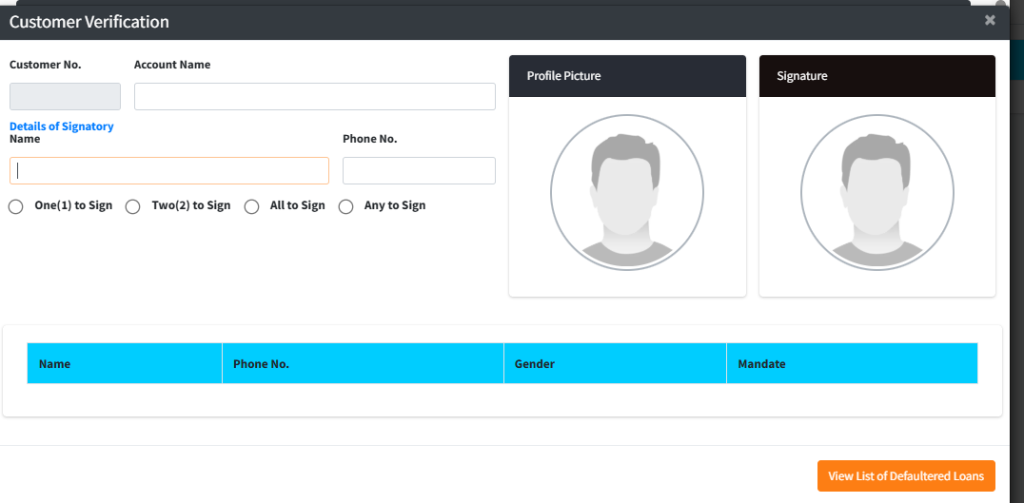
- Ensure the person requesting the discount matches the Profile Picture and Signature on file.
- Close the verification window once identity is confirmed.
Step 4 — Review Deposit Details & Select Payout Destination
- Review the auto-populated data from the selected investment:
- Fixed Deposit Amount: The original principal.
- Duration: The agreed term.
- Interest Amount / Amount Payable: The calculated values applicable for the early payout.
- In the A/C to Debit dropdown, select the internal or customer account where the discounted funds will be credited. The system will display the current balance of the selected account.
Step 5 — Save the Discount Request
- Review all figures for accuracy.
- Click the green Discount Fixed Deposit button at the bottom of the modal.
- Click Confirm in the popup to proceed.
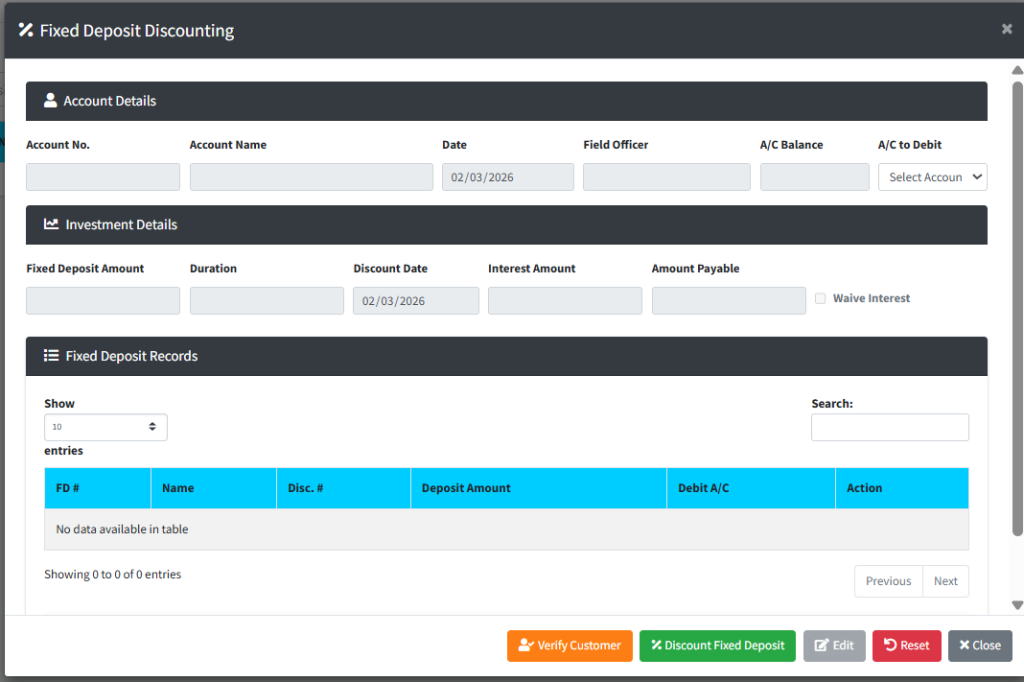
- The transaction is now saved as an “Unauthorised” entry and will appear in the Fixed Deposit Records table at the bottom of the modal, awaiting further approval.
Step 6 — Managing Discount Entries
- Recall/Edit: To modify an unapproved discount request, select it from the Fixed Deposit Records table, click Edit to unlock the destination account field, update the selection, and click Save.
- Reset: Click the red Reset button to clear the current form if you selected the wrong fixed deposit.
KEY NOTES
- No Manual Edits: Important financial fields (Amount, Duration, Interest, Amount Payable) are strictly read-only to prevent unauthorized alterations to the contract terms.
- Waive Interest: The “Waive Interest” checkbox allows the institution to forfeit accrued interest on early termination, pending configuration permissions.
- Approval Required: Discounting a fixed deposit does not instantly release funds. It generates a “D-[FD_Number]” request that must be authorized by a supervisor.