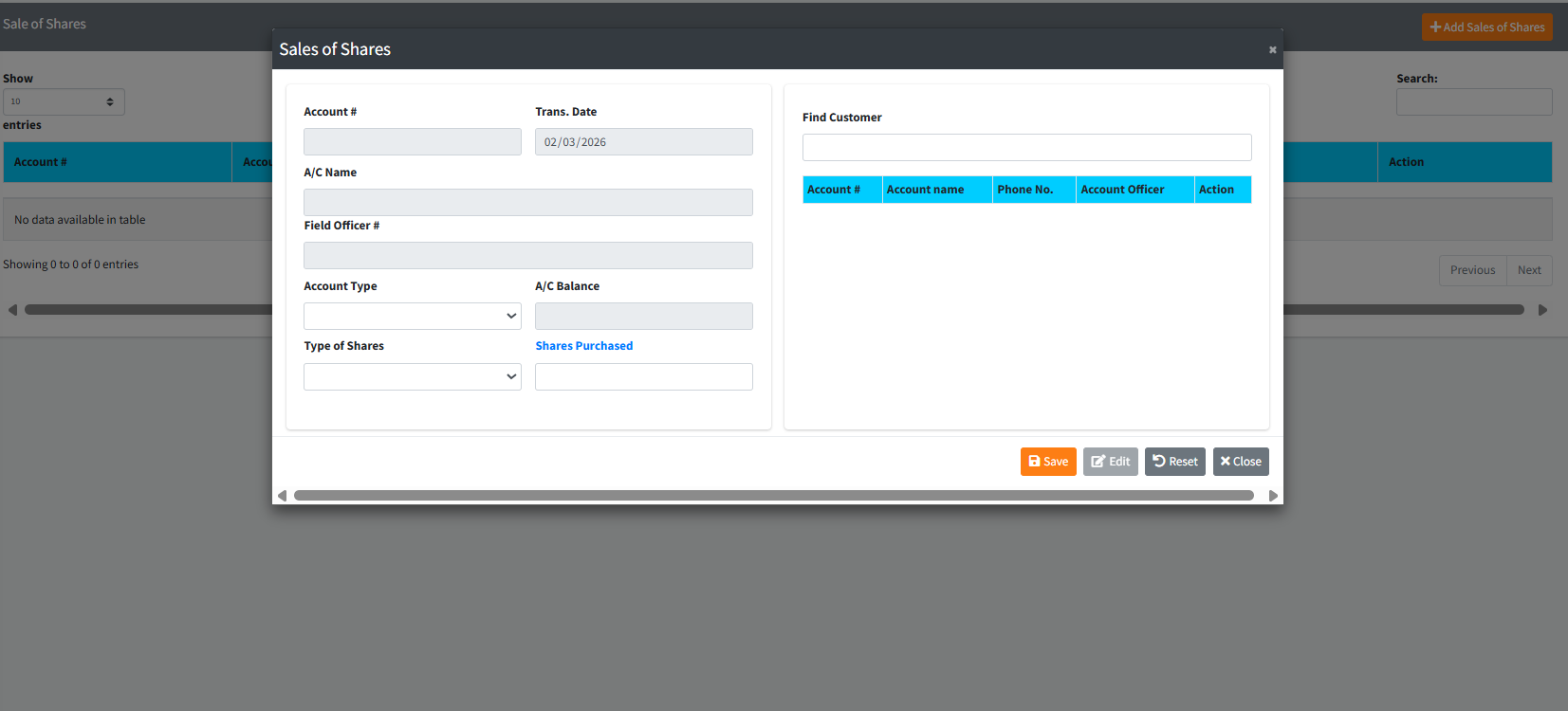
The Sales of Shares module facilitates the purchase of institutional shares by cooperative members. Members can increase their stakes or become official shareholders by purchasing “Ordinary Shares”. The system actively links to the member’s core savings or operating accounts to ensure sufficient balances exist before generating a purchase transaction, seamlessly debiting the member’s account and crediting the appropriate institutional equity/shares GL account.
PURPOSE
- Standardize the workflow for issuing new cooperative shares to members.
- Automatically link customer profile data (contact info, address, next of kin) directly into the shares registry.
- Establish real-time checks to guarantee a member has sufficient account balances to purchase the requested volume of shares at the predefined per-share price.
- Maintain an accurate, unalterable trail of share purchases natively integrated with the General Ledger.
STEP-BY-STEP GUIDE
Step 1 — Accessing the Dashboard
- Navigate to the Back Office Module and select the Sales of shares page.
- The default view features a data table displaying recent un-authorized or historically processed share purchases.

- To register a new share purchase, click the orange + Add Sales of Shares button located at the top right of the data table.

Step 2 — Searching for the Customer A large prompt labeled Sales of Shares will appear, strictly divided into an input form (left) and a search panel (right).
- Direct your attention to the Find Customer section on the right.
- Type the member’s name, phone number, or account identifier into the search box.
- Review the returned records and click the blue RECALL button adjacent to the appropriate customer.
- The system will automatically shift focus and pre-fill the left side of the screen with the customer’s personal data, locking out manual edit privileges to ensure data integrity.
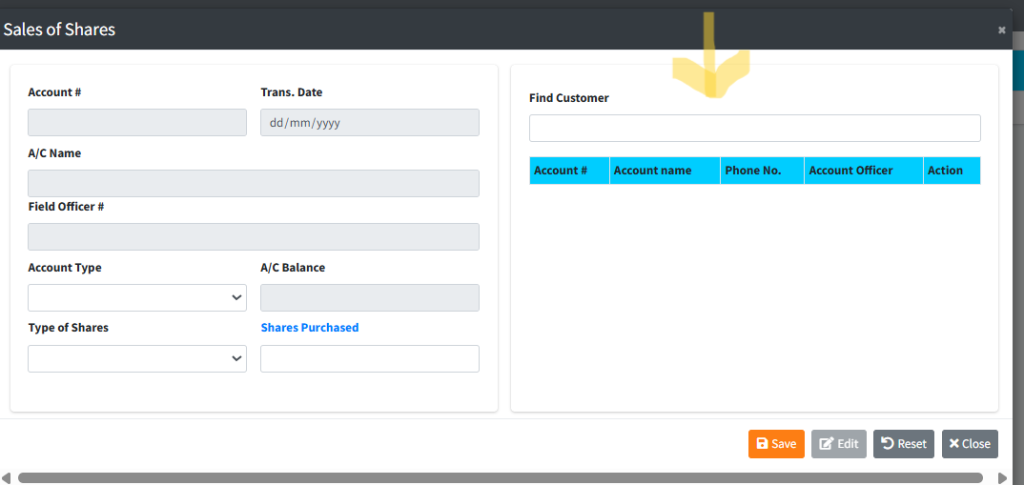
Step 3 — Configuring the Share Purchase Focus on the newly populated Left Side of the form:
- Share Type: Define the classification of the purchased equity (e.g., Ordinary Share).
- A/C Type: Select the member’s funding account (such as their Savings or Current account). Selecting this prompts the system to fetch their current Account Balance, which will display near the bottom of the form.
- Review the populated personal fields (Occupation, Address, DOB, etc.) for accuracy.
- Next of Kin: Choose the designated beneficiary from the dropdown list. If Next of Kin information is missing or needs an update, click the dark grey button with the ellipsis (
...) to access the extended Kin registry. - Represented By: Select the appropriate field representative or officer who negotiated or mediated the sale.
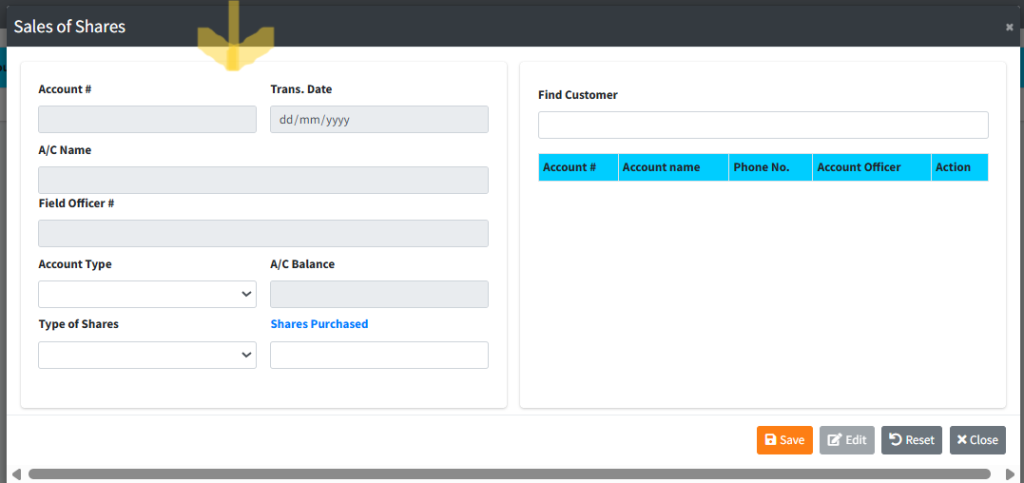
Step 4 — Value Calculation & Completion Scroll to the bottom financial metrics section of the left panel:
- Note the system-enforced Price per share.
- Enter the desired quantity in the Number of Shares field. As you type, the system automatically runs the multiplication to generate the Total Value.
- Crucial Check: The system verifies that the generated Total Value does not exceed the member’s fetched Account Balance. (If it does, a rejection alert will prohibit saving).
- Once verified, click the orange Save button located at the bottom-left footer. Wait for the confirmation prompt, and finalize the entry.
KEY NOTES
- Strict Validation: The form strictly refuses to process transactions if the
Total Valueexceeds the specified fundingAccount Balance. - Auto-Formatting: The
Number of Sharesfield actively formats numeric inputs into easily readable commas (e.g., 10,000) while typing, resolving back to backend-safe integers on calculation. - Dynamic Pre-fills: Price per share and minimum allowable share limits are hard-coded into the institutional settings and cannot be overridden by tellers.
- Edit Mode: If an error is noticed after pulling customer data, clicking the secondary grey Edit button at the footer temporarily unlocks specific demographic fields (like Address or Phone) prior to saving.